E-Learning Accessibility Features
Eventuality’s E-Learning platform has built in accessibility features for those with Dyslexia and other accessibility requirements.
To access the accessibility settings, follow these steps. Please note that although it is possible to enable accessibility features on a mobile device, we strongly recommend that you follow these steps on a desktop computer or laptop.
Red circles, arrows, or other shapes are provided for this guide only and will not appear on the E-Learning site.
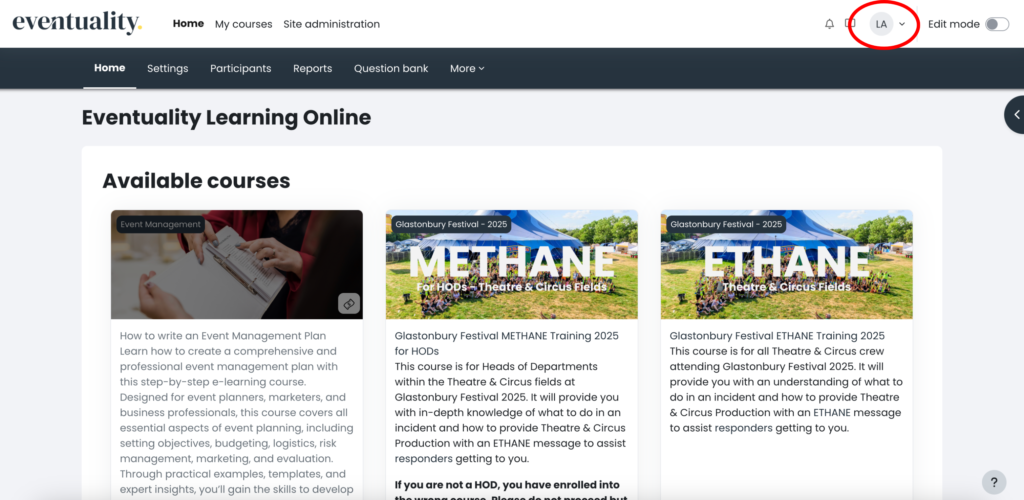
1. Click on the arrow next to your initials in the top right of the screen.
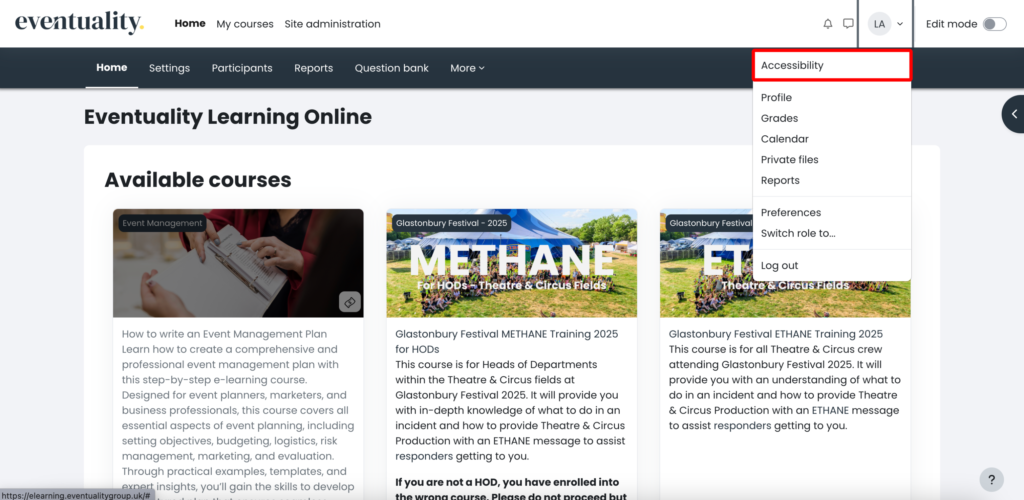
2. Click on ‘Accessibility’ in the drop down menu.
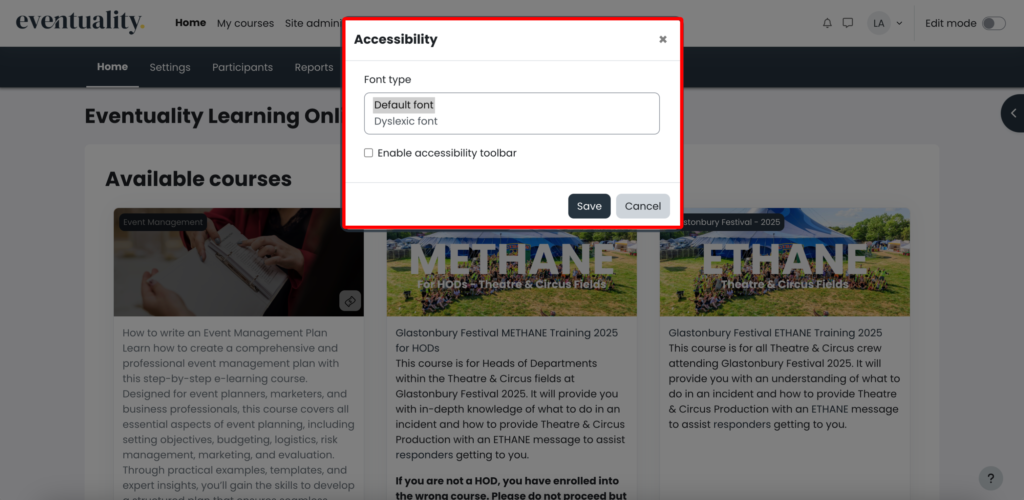
3. In the pop-up, you can enable the ‘Dyslexic font’. This font is recommended for those with Dyslexia and can appear easier to read. Additionally, you can select the box ‘Enable accessibility toolbar’ to display advanced accessibility options. Once you have selected the settings you wish to change, click on ‘Save’.
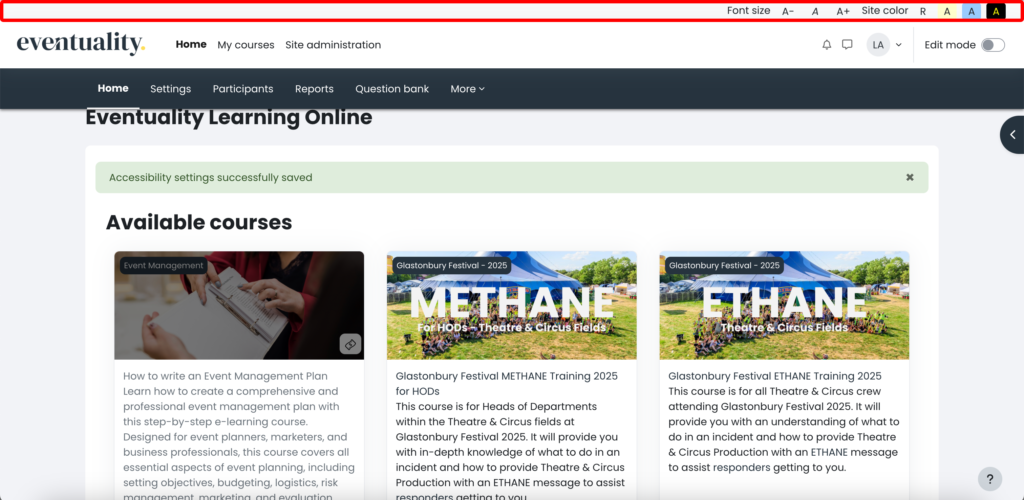
4. If you selected the box ‘Enable accessibility toolbar’, you will now see the accessibility toolbar at the top of the page. From here, you can change the font size and page colours into Low Contrast or High Contrast.
If you require further accessibility support, please contact our team who will be happy to assist you.